GPU Workload: Hosting an LLM
In this third post, I’ll deploy a GPU node in my cluster. The GPU node will be used to host one of the heaviest workloads nowadays: an LLM. LLMs are huge — they use large Docker images, and their weights alone take up a lot of disk space.
This makes the challenge different: the GPU is another resource we need to monitor in order to get the right performance out of the application. Unlike CPU or memory, most GPUs can’t be virtualized or shared between workloads — at least not the ones I’m using here — which makes it harder to schedule more than one pod onto the same GPU.
To use the GPU, I need to install a device plugin and a metrics exporter. Some people use a GPU Operator for this, but in this case, since I’m using a simpler setup, the GPU Operator isn’t needed — it’s meant for more complex scenarios, like managing multiple GPU types or driver versions across many nodes, or installing the NVIDIA driver itself via a privileged “driver container” that mutates the host node. In my setup, the driver already comes preinstalled through the AMI (AL2023_x86_64_NVIDIA), so there’s no driver-management problem for the Operator to solve — the device plugin only has to do its one job: discover the GPU and advertise it to Kubernetes.
The first thing is to provision the GPU node, which is described in the Terraform IaC. The most important part of that definition is setting the right taint:
1
2
3
4
5
taint {
  key    = "nvidia.com/gpu"
  value  = "true"
  effect = "NO_SCHEDULE"
}
With this taint on the node, only pods that tolerate it will be scheduled there.
First, we install the device plugin and the metrics exporter, defined in the Argo CD app gitops/bootstrap/nvidia-gpu-app.yaml. This step doesn’t actually depend on the GPU node existing yet — both are DaemonSets targeting nodeSelector: {role: gpu}, so with zero matching nodes they simply report zero desired/running pods instead of erroring. That means I can install them ahead of time and they’ll self-heal onto the GPU node automatically the moment it joins the cluster.
In the IaC, the number of GPU nodes is set by a Terraform variable. Since we’re just starting to use the GPU node, we’ll set it to 1.
Once the node joins the cluster, the device plugin and dcgm-exporter pods land on it right away, ahead of any real workload:

After that, we install the GPU app itself — named my-app, hosting a model through the vLLM inference engine:
1
kubectl apply -f gitops/bootstrap/vllm.yaml
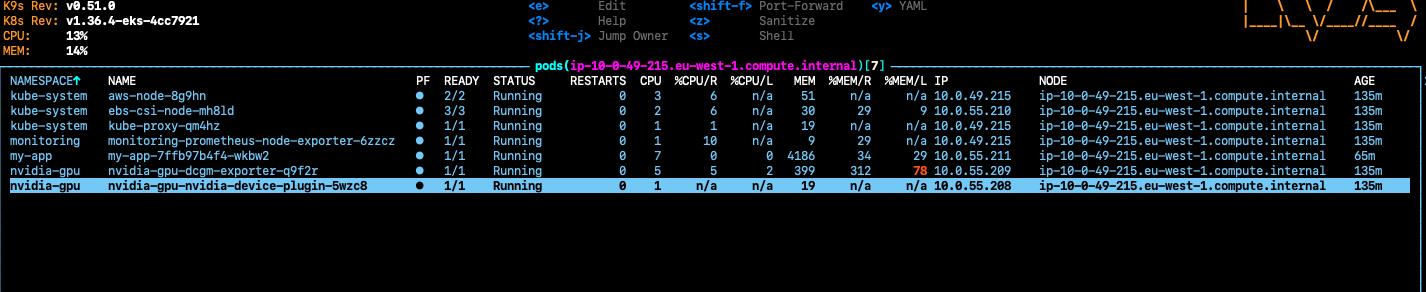
In the image below we can see the pods related to the GPU node once everything is running: the first real GPU application (my-app), the kube-system pods, the monitoring app sending node metrics to Prometheus, and the nvidia-gpu apps (device plugin and exporter).
About the Kubernetes components
This application interacts with all the components covered so far:
- Monitoring: GPU metrics, Traefik (the gateway), and the application’s own internal metrics.
- Networking: the node is exposed through
demo.quezadasubiabre.com.
The application in Kubernetes is made up of several components:
- PVC — makes a gp3 disk from AWS available to the pod.
gitops/apps/vllm/pvc.yaml - Deployment — defines the application’s parameters, like the Docker image and its arguments.
gitops/apps/vllm/deployment.yaml - Service — exposes the application inside the Kubernetes cluster, so it can be reached by other resources.
gitops/apps/vllm/service.yaml - Ingress — redirects traffic from the load balancer to the pod; we use the Traefik ingress controller.
gitops/apps/vllm/ingress.yaml - Middleware — a small step that adapts the base path to what the vLLM framework expects.
gitops/apps/vllm/middleware.yaml
Once the application is deployed, it’s available at:
1
https://demo.quezadasubiabre.com/vllm
Monitoring the cluster
To monitor how the application and the rest of the cluster respond to our requests, I built three Grafana dashboards, defined in gitops/apps/monitoring/manifests.
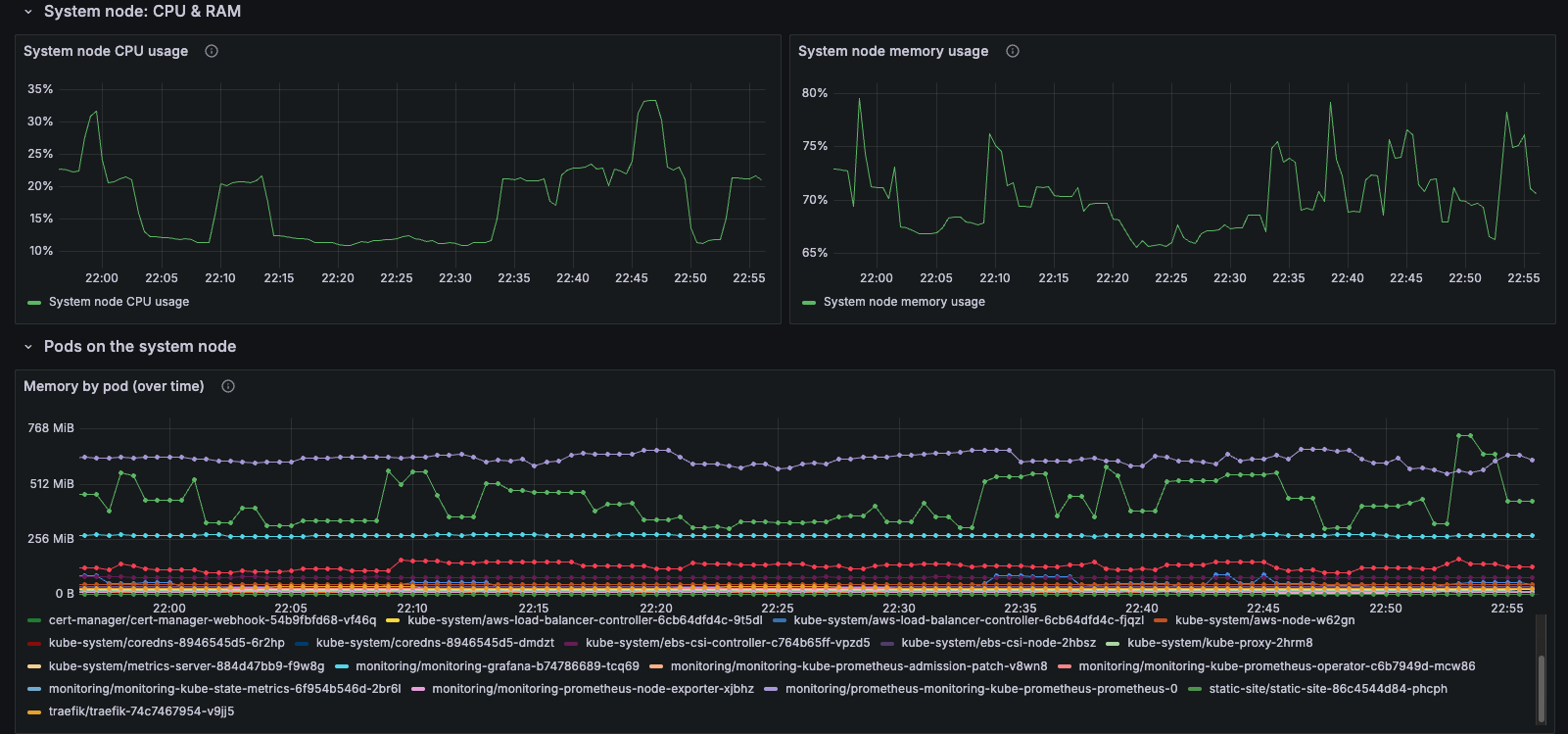
The first one monitors the system node — the node running Argo CD, monitoring, and every other app that keeps the cluster itself running:
The second one breaks that down further, by pod:
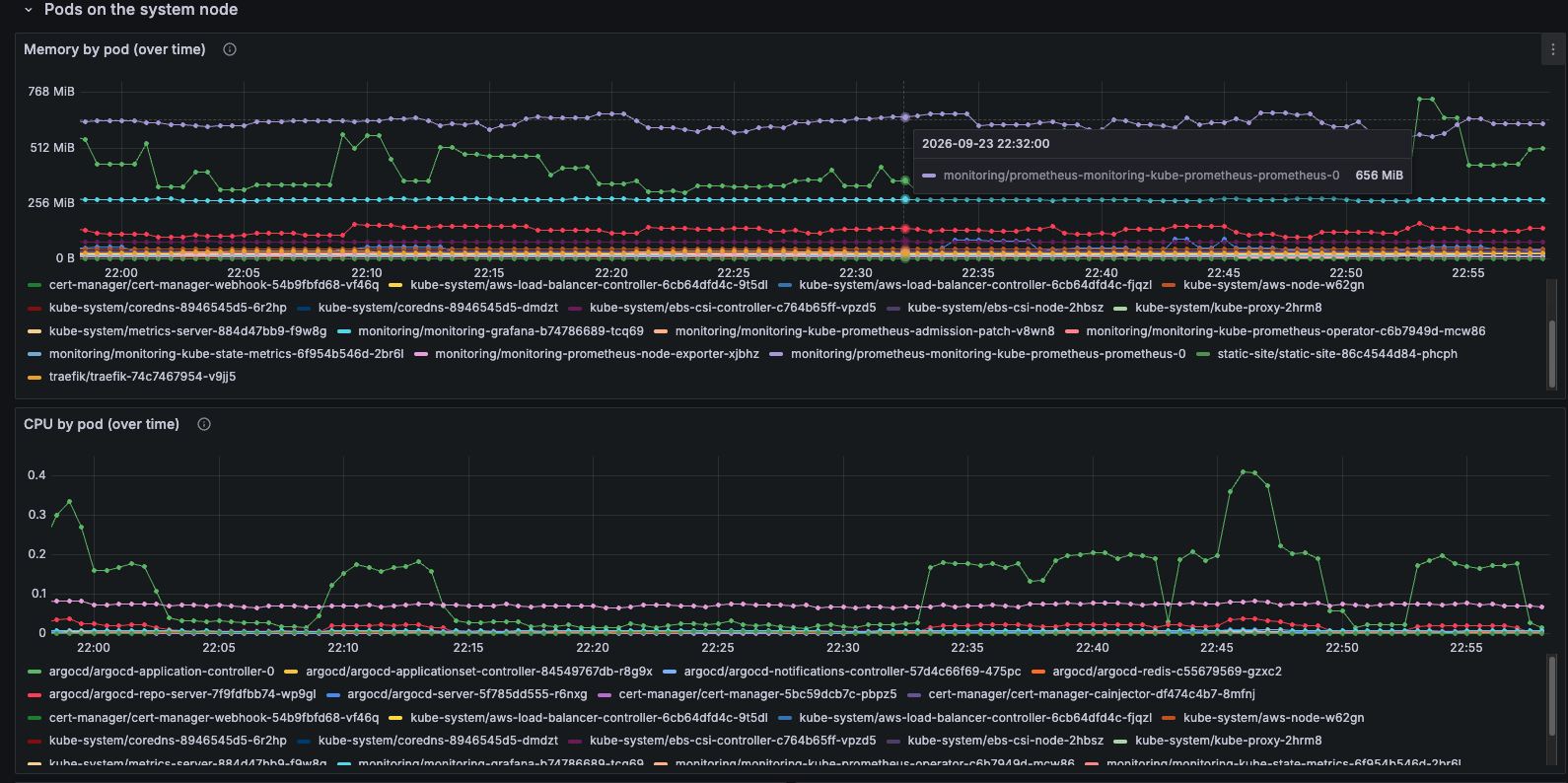
On the system node, the pods using the most memory and CPU are Argo CD and the Prometheus monitoring pods.
Using the application
The LLM hosted here is Qwen/Qwen2.5-7B-Instruct-AWQ — a small, 7B-parameter model, quantized to AWQ so it fits comfortably within the GPU node’s VRAM. The GPU node itself is a g4dn.xlarge instance, with a single NVIDIA T4 GPU (16GB VRAM). Since we’re using the vLLM inference engine, we can send either a single request or concurrent requests; vLLM handles dynamic batching internally, using GPU resources as efficiently as possible regardless of how many requests arrive at once.
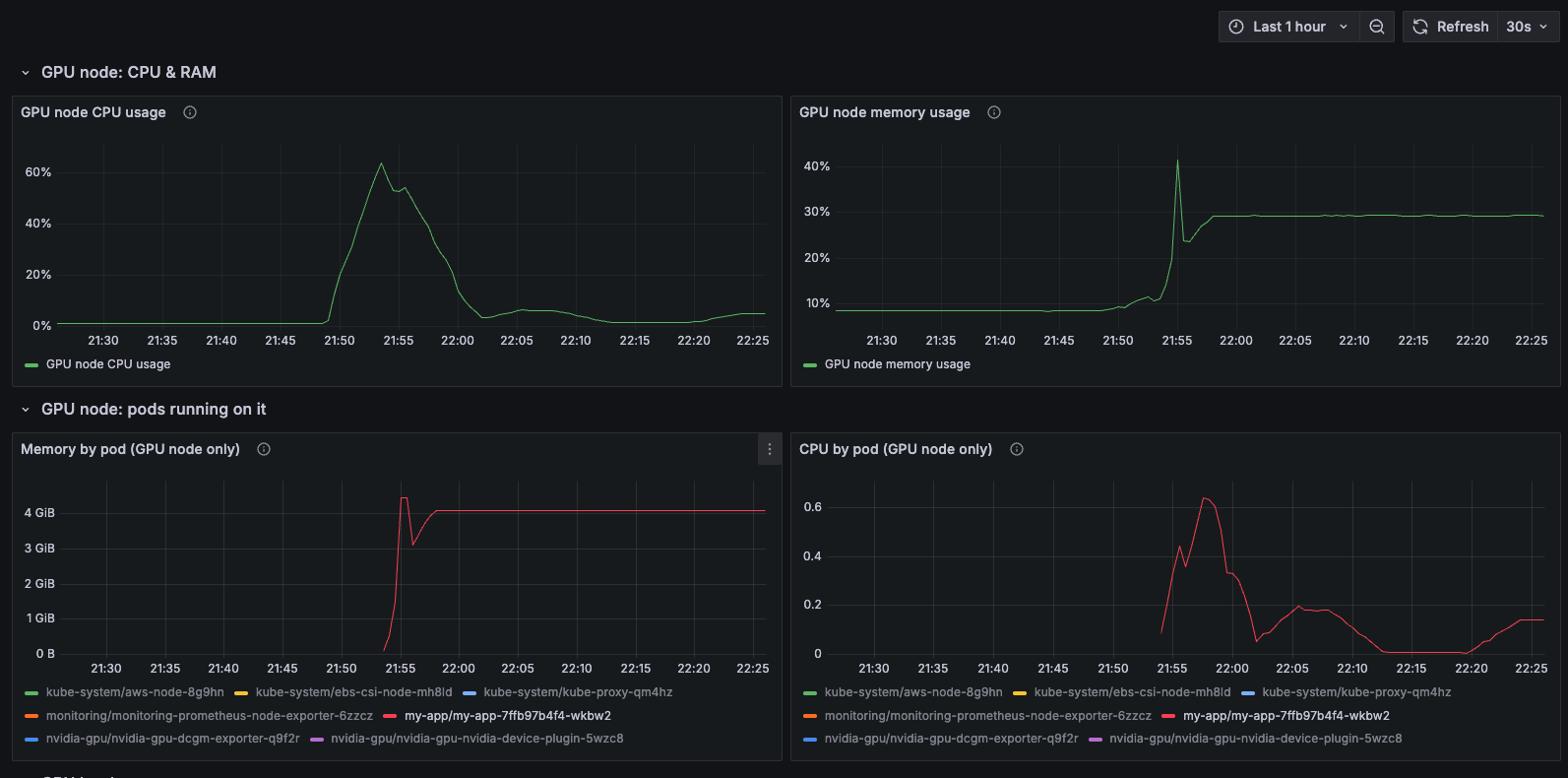
As mentioned, this application uses the GPU — but just like any other application, its CPU and memory usage also matter. The main dashboards for the GPU node itself are:
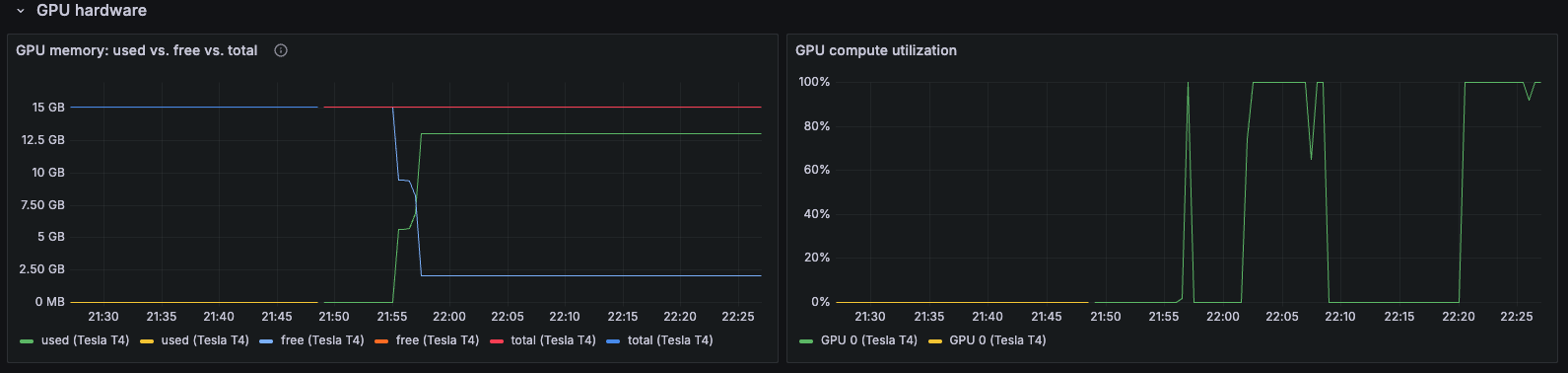
Later on, I’ll show the dashboards related specifically to the application’s own usage.
Application usage
This app is an LLM, so we’ll use it in the simplest way possible: sending prompts.
Single request
To confirm the endpoint works, we’ll send a single request against its OpenAI-compatible chat completions API — shown here the way you’d see it in Postman or Insomnia, as a plain HTTP request/response pair rather than the client code that sends it.
Request
1
2
POST https://demo.quezadasubiabre.com/vllm/v1/chat/completions
Content-Type: application/json
1
2
3
4
5
6
7
8
9
10
11
12
13
{
  "model": "Qwen/Qwen2.5-7B-Instruct-AWQ",
  "messages": [
    {
      "role": "user",
      "content": "What is the Capital of Chile? Recommend me something to do for 3 days"
    }
  ],
  "stream": true,
  "stream_options": {
    "include_usage": true
  }
}
Response — 200 OK, streamed as Server-Sent Events. The shape of the response is the usual OpenAI chat-completion format:
1
2
3
4
5
6
7
8
9
10
11
12
13
14
15
{
  "choices": [
    {
      "message": {
        "role": "assistant",
        "content": "..."
      }
    }
  ],
  "usage": {
    "prompt_tokens": 45,
    "completion_tokens": 500,
    "total_tokens": 545
  }
}
And here’s choices[0].message.content — the actual reply — rendered as text instead of an escaped JSON string:
The capital of Chile is Santiago. It’s a vibrant city with a rich history and modern amenities that make it an exciting place to visit.
For a three-day trip in Santiago, here are some recommendations:
Day 1: Explore the Historic Center
- Morning: Start your day at Plaza de Armas, the heart of Santiago. Visit the Government Palace and admire the colorful murals on its walls. Nearby, you can explore the San Francisco Church, which has an impressive Baroque interior.
- Afternoon: Head to the Mercado Central (Central Market) for a taste of local food. Enjoy a meal at one of the many restaurants or stalls, and take in the lively atmosphere.
- Evening: Visit the Museum of Contemporary Art (Museo de Arte Contemporáneo) or the National Museum of Fine Arts (Museo Nacional de Bellas Artes) for some cultural enrichment.
Day 2: Discover the Hills and Museums
- Morning: Take a tour up to San Cristóbal Hill. You can either hike or take the funicular railway to the top, where you’ll find a beautiful park with views over the city. From there, you can visit the San Cristóbal Museum.
- Afternoon: Spend some time at the Chilean Museum of Prehistory and Natural History (Museo Nacional de Historia Natural). It’s one of the largest natural history museums in Latin America and offers fascinating exhibits.
- Evening: Enjoy dinner at a rooftop restaurant with panoramic views of the city. This will be a memorable way to end your evening.
Day 3: Experience the Outskirts and Modern Santiago
- Morning: Visit the Quinta Normal Park, a large public park that’s perfect for a leisurely stroll. It’s a great place to relax and enjoy nature.
- Afternoon: Explore the Barrio Bellavista, known as the “Bohemian Quarter.” This area is full of colorful houses, street art, and trendy cafes. You might even catch a live music performance.
- Evening: End your trip with a visit to the Mercado de Valparaiso, a bustling market that’s popular among locals. You can buy souvenirs, try street food, or just enjoy the vibrant atmosphere.
These activities should give you a well-rounded experience of Santiago, from its historic center to its modern attractions and vibrant neighborhoods. Enjoy your trip!
Alongside the response, the request script (scripts/single-request.py) also measures a few client-side metrics worth tracking for any LLM endpoint:
| Metric | Value |
|---|---|
| Time to first token (TTFT) | 0.175s |
| Elapsed time (total) | 11.091s |
| Avg inter-token latency | 21.9ms |
| Prompt tokens | 45 |
| Completion tokens | 500 |
| Total tokens | 545 |
| Tokens/sec (completion) | 45.1 |
These metrics are very impressive — both the time to first token and the inter-token latency are very low.
Concurrent request
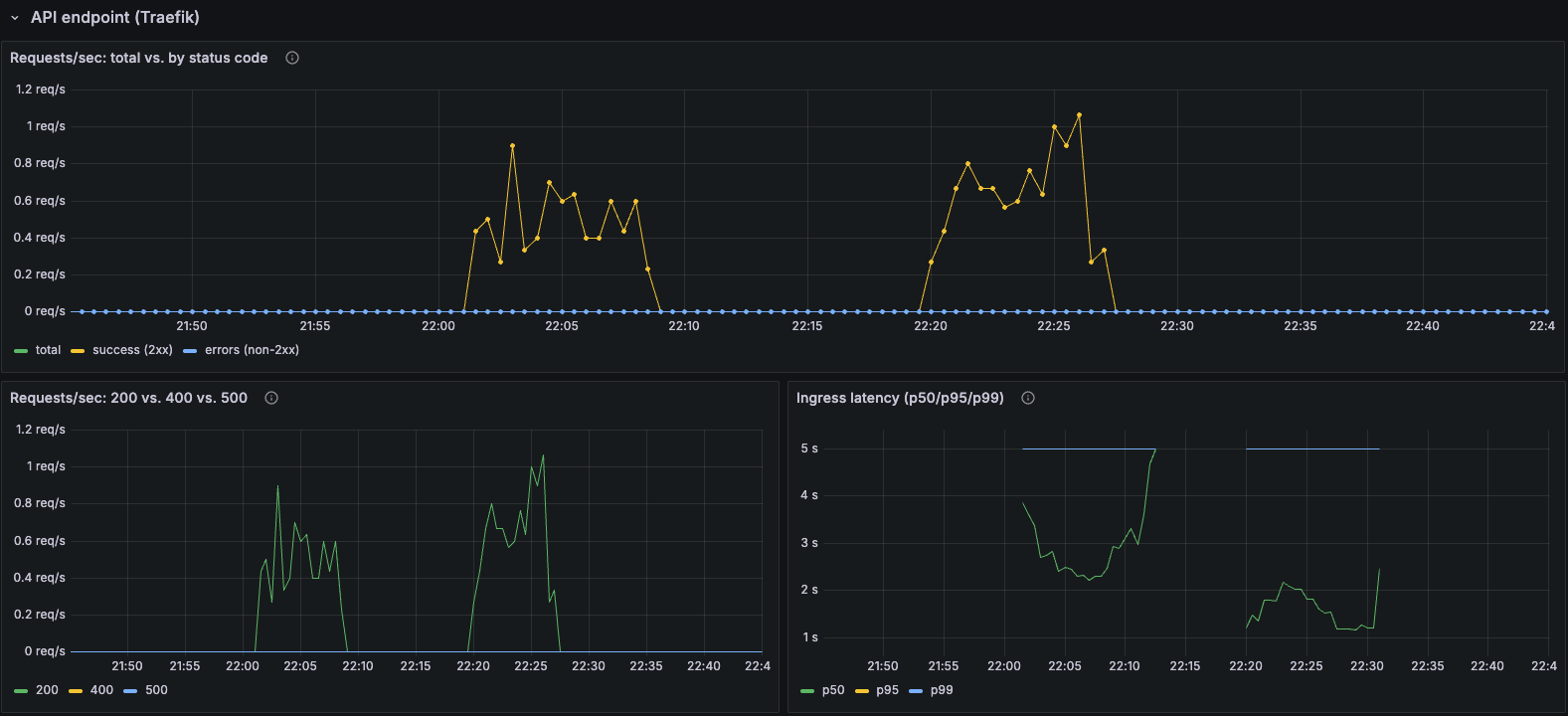
After the single request experiment, we check how well this application behaves with concurrent requests. This time I did a simple test using scripts/load_test.py: for about 7 minutes, it keeps sending requests to the endpoint in rounds, and each round fires a random number of them at the same time — anywhere from 1 to 8 concurrent requests. The idea is to simulate uneven, bursty traffic instead of one clean, fixed load, and to run long enough to see how the app behaves over time, not just in a single snapshot.
Here we use our dashboard to monitor the number of requests through Traefik’s metrics — fortunately, all of them got a 200 response:
We also measure other metrics exposed by the vLLM inference engine itself:
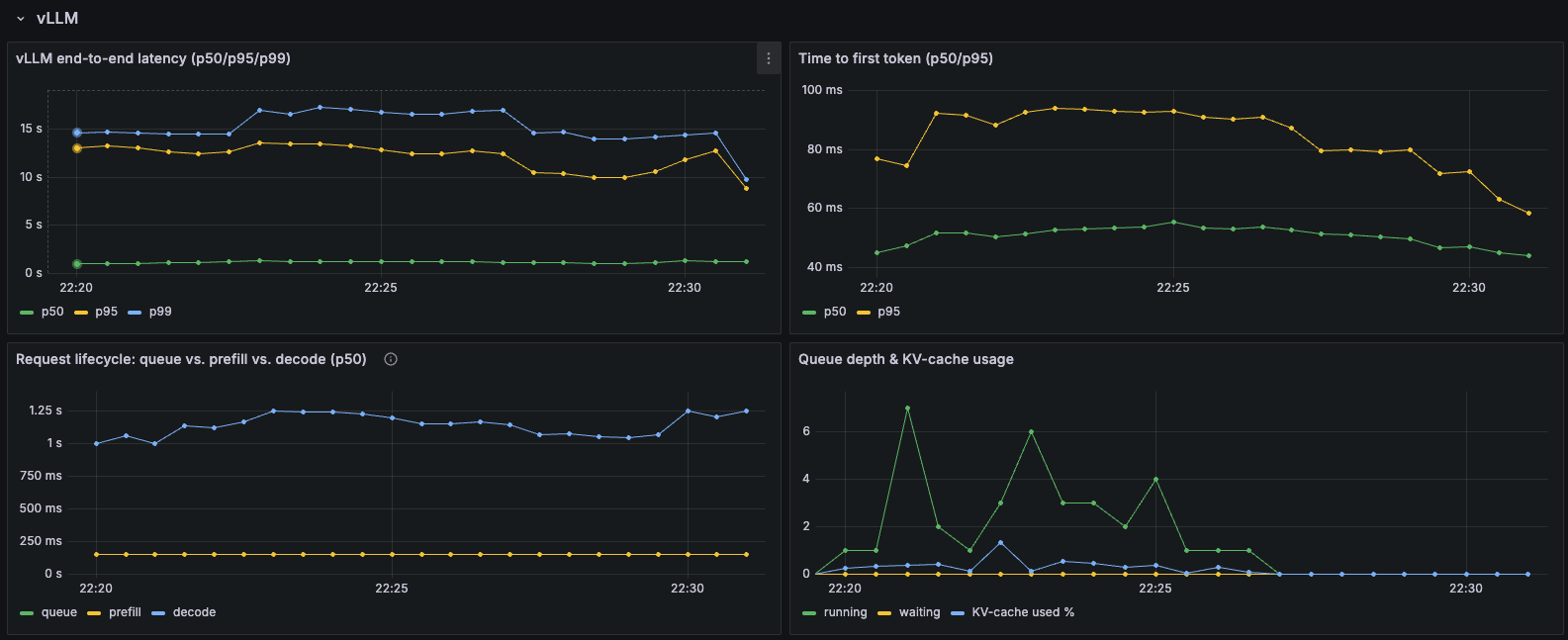
A quick rundown of what each panel is actually showing:
- vLLM end-to-end latency (p50/p95/p99) — total time from receiving a request to finishing its response, at the median, 95th, and 99th percentiles. The gap between p50 (~10s) and p99 (~15s) shows how much slower the worst-case requests are compared to a typical one — mostly a function of how many other requests they had to queue or batch behind.
- Time to first token (p50/p95) — how long a client waits before the first token streams back, separate from total completion time. This is the number that actually determines how responsive the app feels, since the rest of the tokens stream in afterward.
- Request lifecycle: queue vs. prefill vs. decode (p50) — breaks a request’s time down into three phases: waiting in the queue before vLLM picks it up, prefill (processing the input prompt), and decode (generating output tokens one by one). Decode is consistently the largest chunk here, which makes sense — it’s directly proportional to how many tokens are being generated.
- Queue depth & KV-cache usage —
runningis how many requests are actively being processed on the GPU right now,waitingis how many are queued behind them, andKV-cache used %is how full vLLM’s key-value cache is (the GPU memory that holds attention state for all in-flight requests). Spikes inwaitingline up with the concurrent bursts from the load test, while KV-cache usage stayed low throughout — a sign this workload was nowhere near saturating the T4’s 16GB of VRAM.
Next steps
While testing the application, I noticed that scaling the GPU node from 0 to 1 — with the LLM application up and running — took close to 10 minutes. That’s because the GPU node needs to be provisioned, the container image needs to be pulled, and the model weights need to be downloaded. There’s room to reduce that time and make scaling faster.
Since I would like to build a truly scalable system, this is something I want to improve — both to scale faster from zero to one, and to be able to scale further, to support higher workloads.
Code is up at github.com/quezadasubiabre/aws-eks-platform.