Bootstrapping the Platform with Argo CD
Continuing with the construction of the platform started in the previous post, we’ll now add Argo CD to the cluster and the other components needed to make the platform usable.
The apps I’ll install to start with this platform are:
monitoring: to get metrics from the cluster and use them, a basic stack is:
- Prometheus
- Grafana
- Loki
networking: as we’ll host some applications in the cluster that will be exposed through the internet, we need:
- Traefik ingress controller
- a load balancer
The GPU-related components (nvidia-device-plugin, dcgm-exporter) are their own topic — I’ll cover those in a future post.
Keep in mind this is a developer platform, so some components aren’t set up with a production-grade approach.
To explain how this platform was built, I’ll go step by step setting up each application.
Install Argo CD
First we start with the Kubernetes cluster with a single node, the system node with the t3.medium. I wanted to use a smaller (cheaper) instance, but it didn’t have enough resources for all the applications.
The first step is to log in to the running cluster:
1
aws eks update-kubeconfig --region eu-west-1 --name k8s-cloud-project
After this, the cluster credentials will be configured on your computer, so you can access it. To manage the cluster I’m using k9s.

At this point, the kube-system namespace already has 7 pods running on the system node — these are the EKS add-ons set up in the infrastructure layer, before any Argo CD-managed app is installed:
| Pod | Ready | What it does |
|---|---|---|
| aws-node | 2/2 | The VPC CNI’s node agent — assigns pod IPs from the VPC subnet. Runs as a DaemonSet, one per node. |
| coredns ×2 | 1/1 each | Cluster-internal DNS server — resolves Service/pod names to ClusterIPs. 2 replicas by default for HA. |
| ebs-csi-controller | 6/6 | The controller side of the EBS CSI driver — provisions/attaches EBS volumes for PVCs. 6/6 containers because the chart bundles several sidecars (provisioner, attacher, resizer, snapshotter, liveness-probe, plus the driver itself). |
| ebs-csi-node | 3/3 | The node-local half of the EBS CSI driver — mounts attached volumes into pods on this node. DaemonSet, one per node. |
| kube-proxy | 1/1 | Implements Kubernetes Services on this node — programs the rules that load-balance traffic to a Service’s ClusterIP across its backing pods. |
| metrics-server | 1/1 | Collects CPU/memory usage from kubelets, exposing it via the Kubernetes Metrics API — powers kubectl top and any Horizontal Pod Autoscalers. |
After we’re logged in to the cluster, we can install Argo CD. I like keeping every setup step as a make target rather than remembering raw commands, so this is driven by a Makefile:
1
2
3
4
5
install-argocd: eks-login
	kubectl create namespace argocd --dry-run=client -o yaml | kubectl apply -f -
	kubectl apply -n argocd --server-side --force-conflicts -f https://raw.githubusercontent.com/argoproj/argo-cd/stable/manifests/install.yaml
	kubectl scale deployment argocd-dex-server -n argocd --replicas=0
	kubectl wait --for=condition=available --timeout=300s deployment/argocd-server -n argocd
Running make install-argocd first logs in to the cluster (the eks-login target from earlier), then installs Argo CD straight from the upstream install manifest rather than a Helm chart. It creates the argocd namespace, then applies the official manifest with server-side apply (needed because some of the CRDs it ships are large enough to trip client-side apply’s annotation size limit). It then scales argocd-dex-server down to zero replicas — Dex is Argo CD’s built-in SSO connector, used to log in via GitHub, Google, LDAP, etc. Since I’m not configuring any external identity provider, Dex has nothing to connect to and just crash-loops waiting for a config that will never come, so I disable it and log in with the built-in admin account instead. Finally, it waits for argocd-server to become available before moving on.
With Argo CD installed, the next step is reaching its UI. A production setup would put it behind its own Ingress with proper auth, but for this internal, single-user platform that’s more than I need — a simple kubectl port-forward is enough. To log in I also need the initial admin password, which Argo CD generates and stores in a Secret on first install:
1
2
3
open-argocd:
	kubectl -n argocd get secret argocd-initial-admin-secret -o jsonpath="{.data.password}" | base64 -d; echo
	kubectl port-forward svc/argocd-server -n argocd 8080:443
make open-argocd decodes that password and prints it, then opens the port-forward so the UI is reachable at https://localhost:8080 while the command keeps running. From here I log in as admin with that password.
The second piece Argo CD needs is access to the Git repository it will sync from. Since the repo lives on GitHub, this means registering a GITHUB_USERNAME and GITHUB_TOKEN as credentials:
1
2
add-argocd-credentials:
	sed -e "s|\$${GITHUB_TOKEN}|$$GITHUB_TOKEN|" -e "s|\$${GITHUB_USERNAME}|$$GITHUB_USERNAME|" gitops/bootstrap/repo-credentials.yaml | kubectl apply -n argocd -f -
gitops/bootstrap/repo-credentials.yaml is a Secret template with ${GITHUB_USERNAME} and ${GITHUB_TOKEN} placeholders instead of real values, so neither is committed to the repo. make add-argocd-credentials substitutes both placeholders with the GITHUB_USERNAME and GITHUB_TOKEN environment variables at apply time via sed, then applies the resulting Secret into the argocd namespace. Argo CD picks it up automatically and uses it to clone and pull from my repo whenever it syncs an Application.
After all that, we can open the port-forwarded URL and log in to the Argo CD UI:
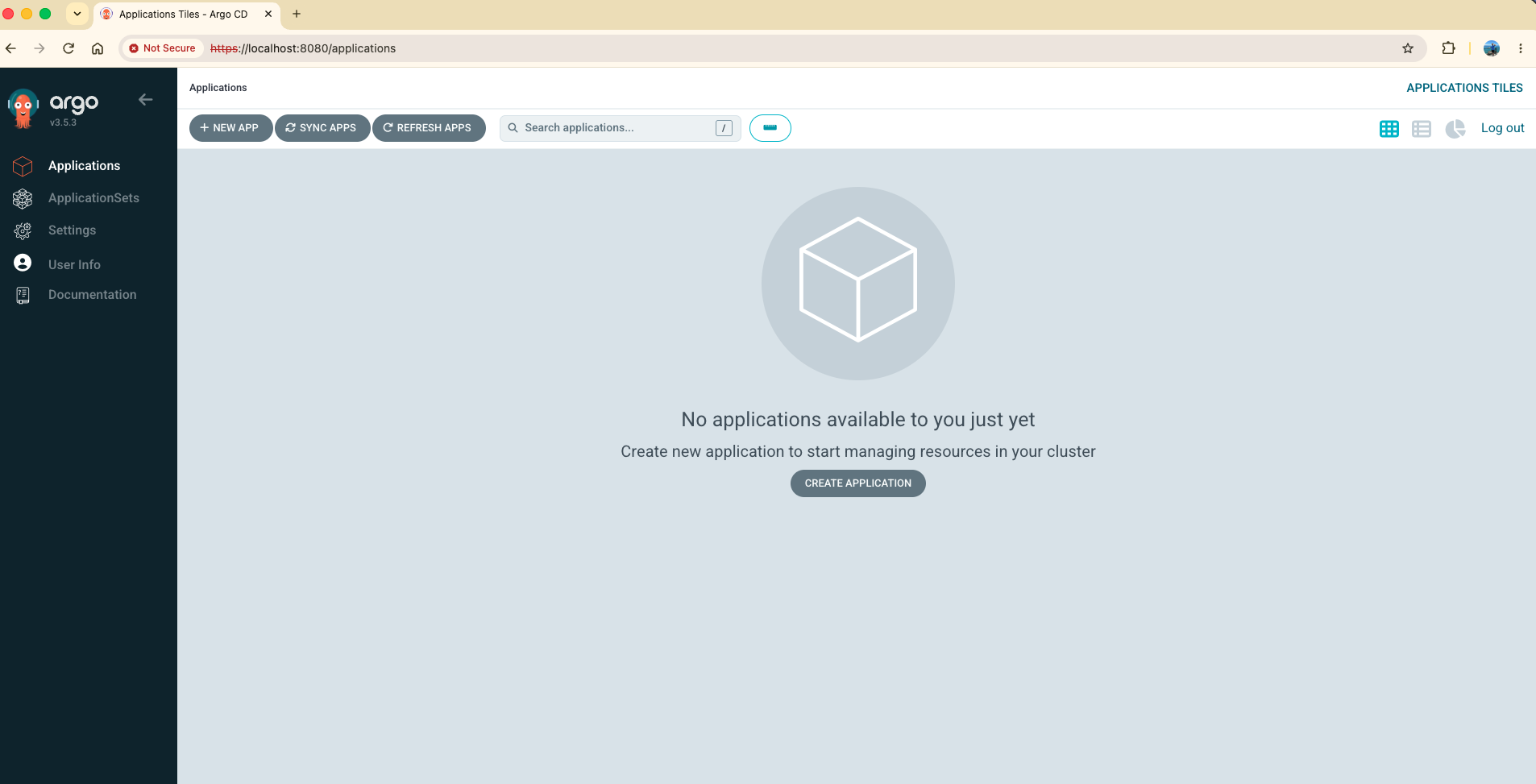
Adding the credentials Secret is what will let Argo CD read the GitOps structure in this repo and start creating Applications from it, which is what the next section covers.
Adding applications
To install an application in Argo CD, I define two things: an Application manifest in the bootstrap folder, and its parameters in the apps folder, both inside gitops.
In gitops/bootstrap/ each file is an Argo CD Application resource — it points at the upstream Helm chart (or a folder of raw manifests) and, via a second source, at this same repo. In gitops/apps/<name>/ lives the values.yaml (or raw YAML) that second source references, which is what actually configures the app once it’s deployed.
I’ll divide this section into monitoring apps, networking apps, and the first app deployed on top of the platform.
Monitoring apps
Among the monitoring apps I’m using the usual open-source stack: Prometheus, Grafana, and Loki.
- Prometheus → collects and stores metrics: CPU, memory, request rate, latency, errors, etc.
- Grafana → visualizes those metrics (and other data) in dashboards and graphs. It queries Prometheus to show things like CPU usage, pod health, and API latency.
- Loki → collects and stores logs from applications and Kubernetes pods. Grafana can query Loki to inspect those logs.
I like relating these to their AWS-managed equivalents, since it makes the purpose of each one obvious if you already know AWS:
| Kubernetes / Open Source | AWS equivalent | Purpose |
|---|---|---|
| Prometheus | CloudWatch Metrics | Metrics |
| Grafana | CloudWatch Dashboards | Visualization |
| Loki | CloudWatch Logs | Logs |
To install and manage these with Argo CD, each one gets an Application manifest in gitops/bootstrap/ — monitoring-app.yaml for the kube-prometheus-stack chart (Prometheus + Grafana bundled together) and loki-app.yaml for Loki. Each Application references two sources: the upstream Helm chart itself, and this same Git repo (via ref: values) so it can pull a values.yaml file that lives alongside it in gitops/apps/monitoring/ and gitops/apps/loki/. That second source is what makes this GitOps rather than a one-off Helm install — changing the values file and pushing to main is enough for Argo CD to pick up and apply the change on its own.
Before any of the monitoring apps, though, the cluster needs a StorageClass, since Prometheus, Grafana, and Loki all need to persist data to disk. gitops/bootstrap/storage-class-app.yaml defines a gp3 StorageClass backed by the EBS CSI driver, so pods can request AWS EBS volumes through a PVC:
1
kubectl apply -f gitops/bootstrap/storage-class-app.yaml
With storage in place, I can deploy monitoring itself:
1
kubectl apply -f gitops/bootstrap/monitoring-app.yaml
After a few minutes, everything is deployed and visible in the Argo CD UI:
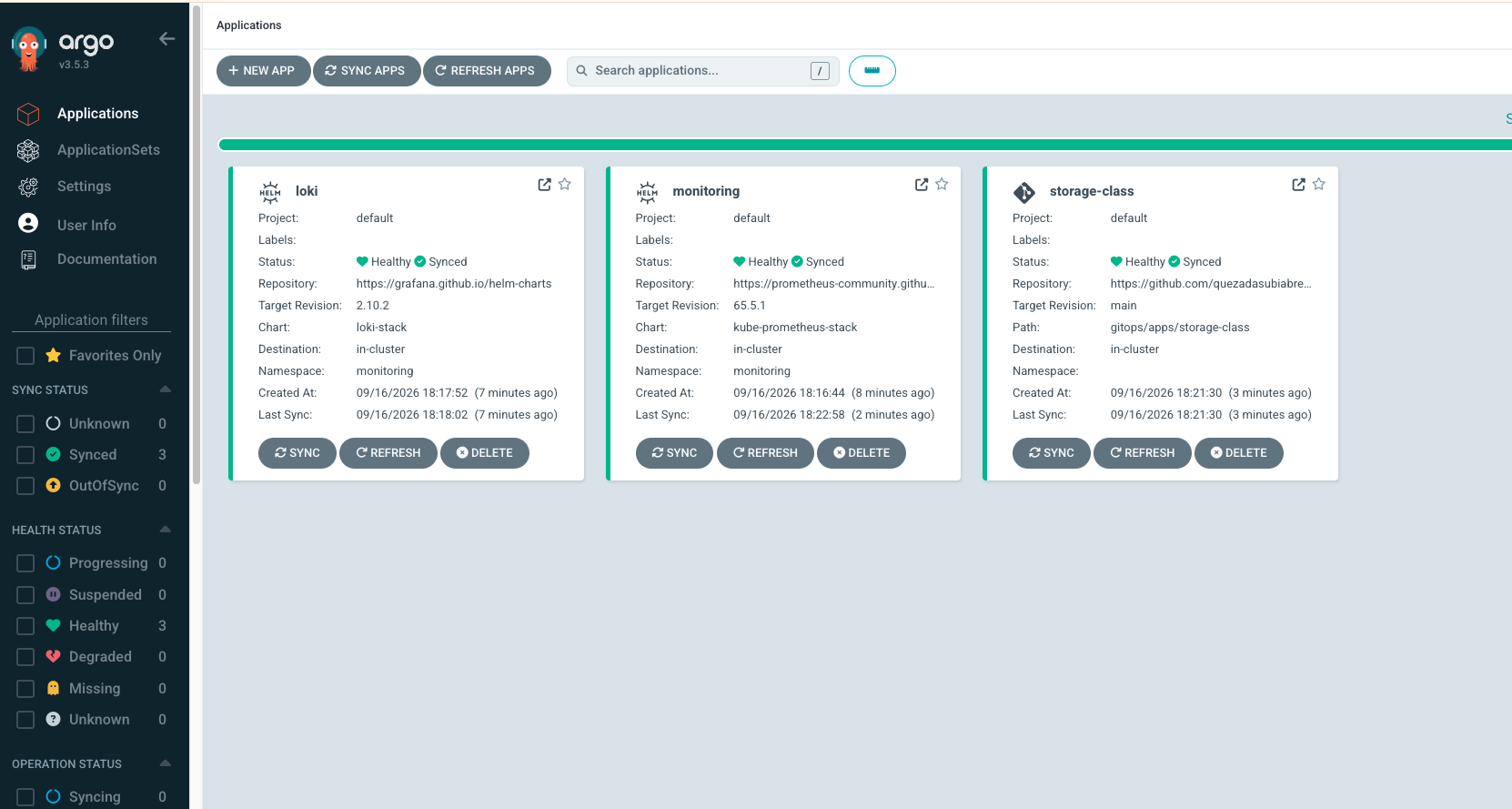
One thing I really like about Argo CD’s UI is that it renders every Kubernetes resource an Application created, as a live dependency tree — not just “it’s synced,” but every Deployment, Service, ConfigMap, PVC, etc. it’s actually managing:
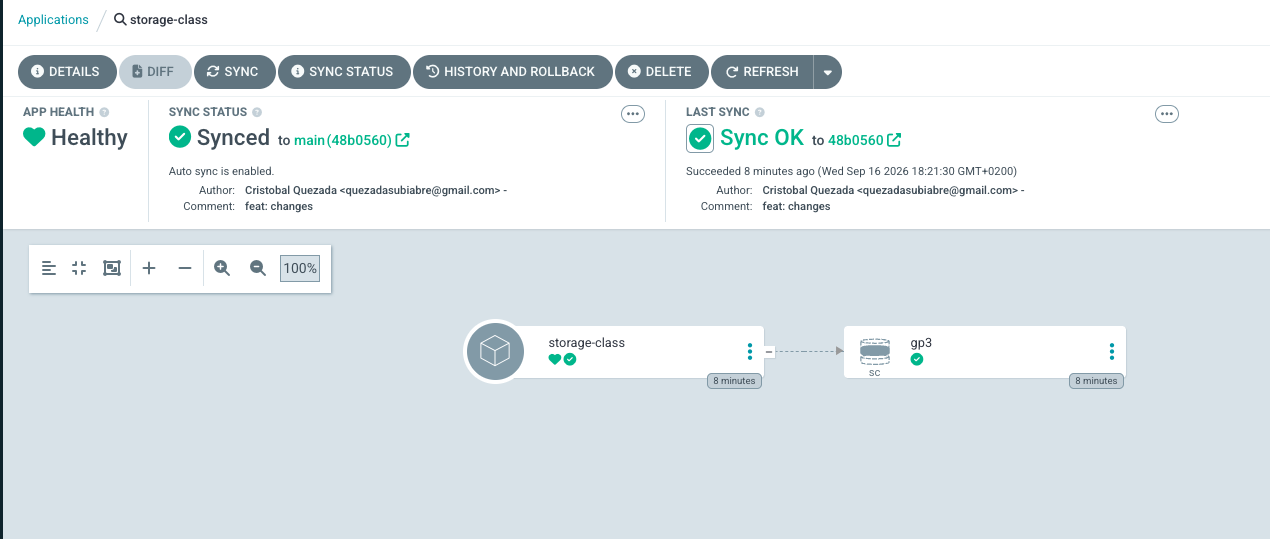
An important detail I’ve added to every Application manifest is a finalizer:
1
2
  finalizers:
    - resources-finalizer.argocd.argoproj.io
Without it, deleting an Argo CD Application only removes the Application object itself — the Kubernetes resources it created (Deployments, Services, PVCs…) are left behind, orphaned. This finalizer makes Argo CD cascade the delete: removing the Application also removes everything it deployed, so kubectl delete application <name> actually tears the whole thing down cleanly instead of leaving stray resources in the cluster.
If we go back to k9s to check the cluster’s pods, we can see all the new pods that Argo CD just deployed for us, running alongside the system pods from earlier:
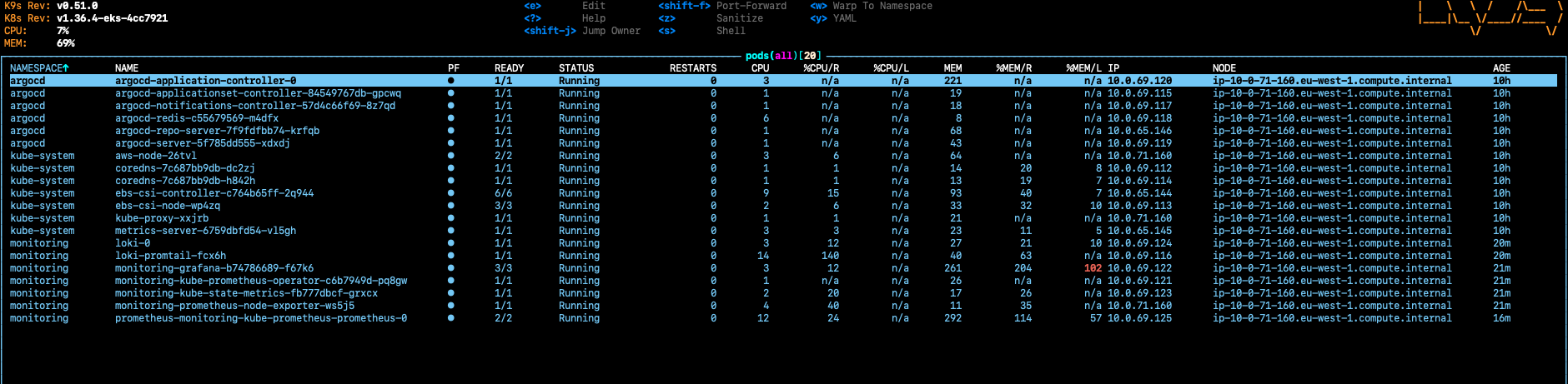
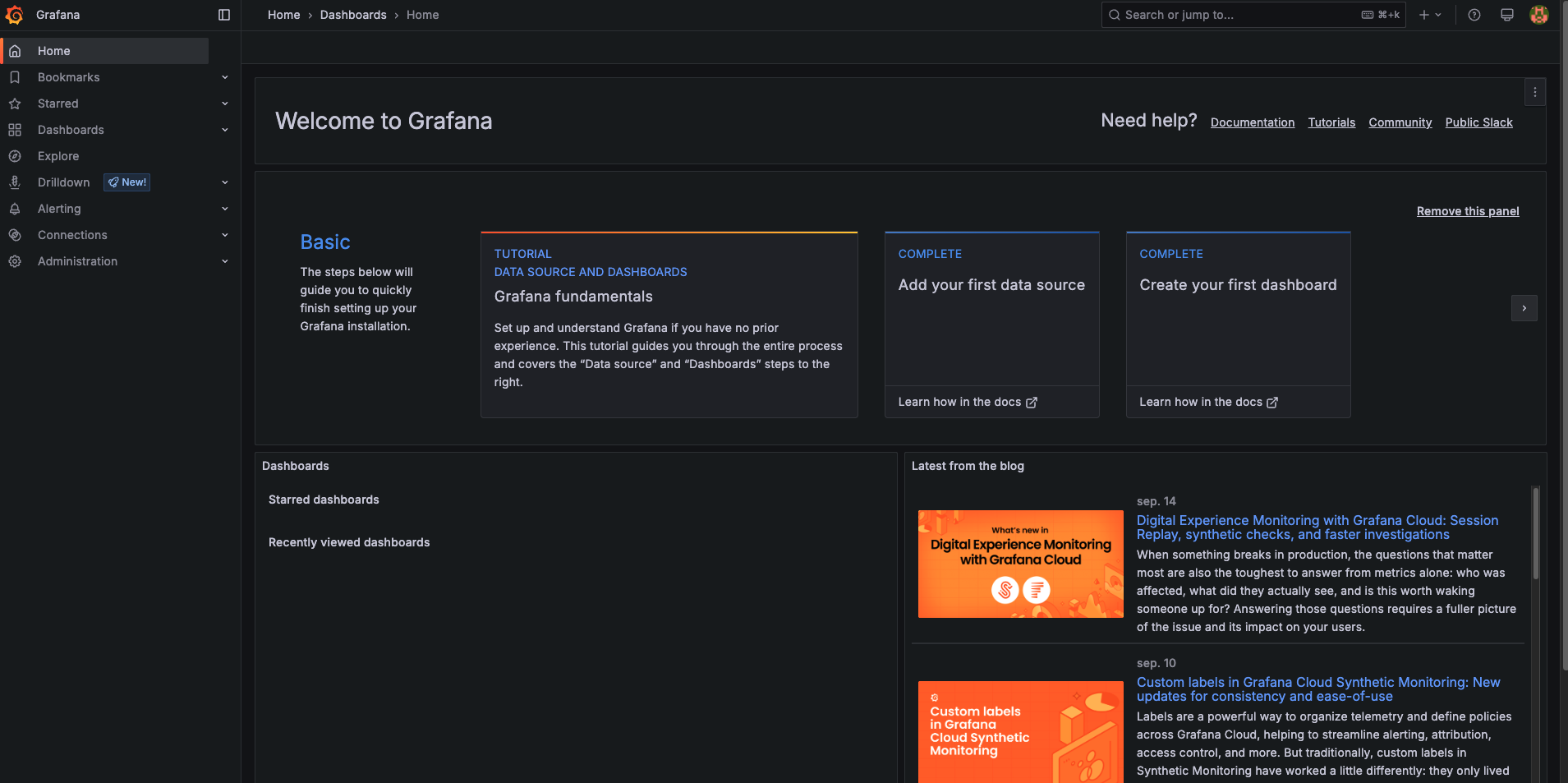
Grafana doesn’t have a public URL yet — same as Argo CD, I reach it through a port-forward, using the open-grafana target from the Makefile:
1
2
open-grafana:
	kubectl port-forward svc/monitoring-grafana -n monitoring 3000:80
Running make open-grafana forwards Grafana’s Service to my machine, so I can open it at http://localhost:3000 and log in with the default admin/admin credentials set in gitops/apps/monitoring/values.yaml:
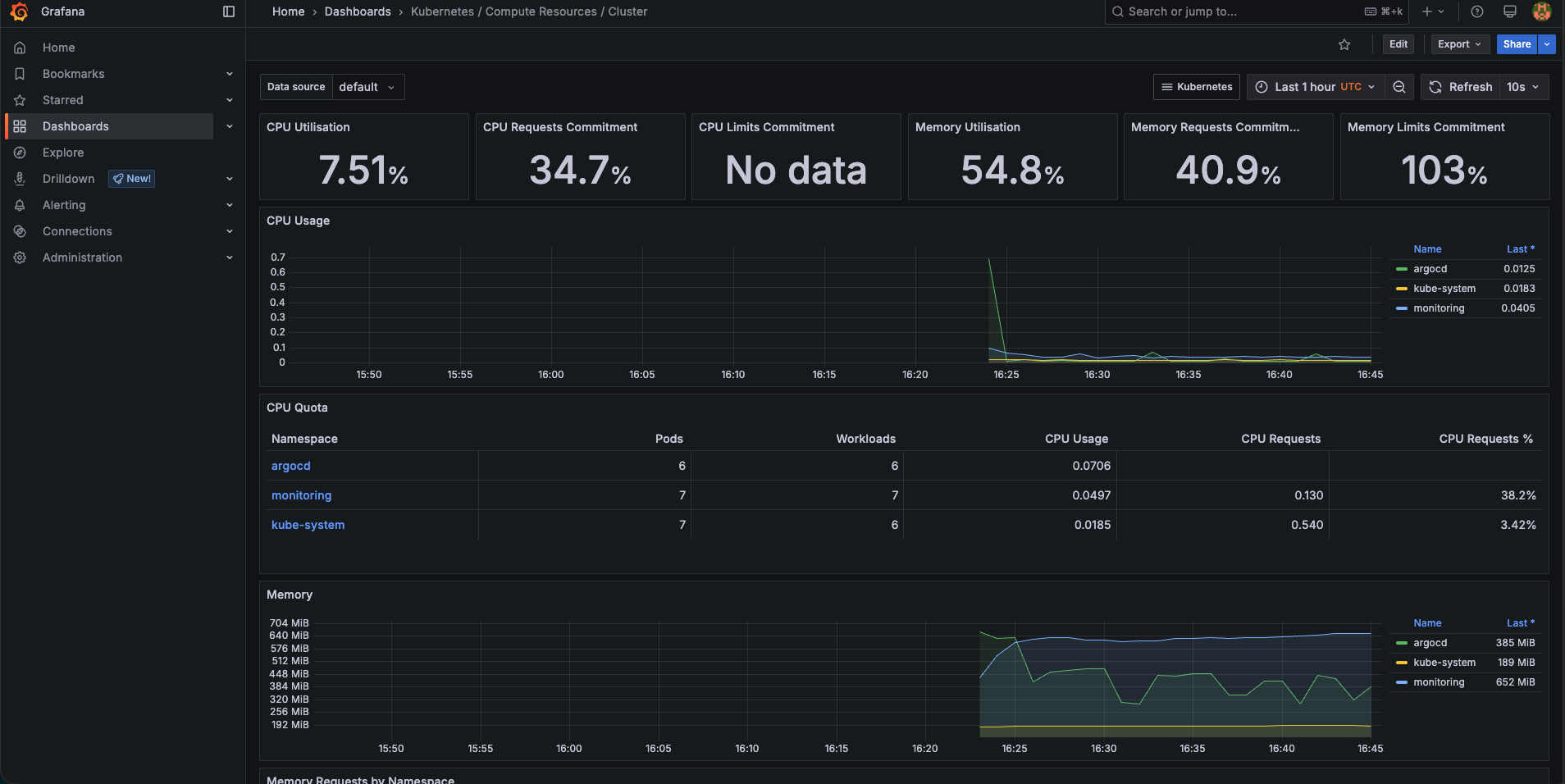
The kube-prometheus-stack chart ships with a set of pre-built dashboards out of the box, so there’s no need to build one from scratch just to see the cluster working — the “Kubernetes / Compute Resources / Cluster” dashboard already gives a live view of CPU, memory, and pod counts across the whole cluster:
Networking apps
The goal here is to expose a Service running inside the cluster to the public internet, over HTTPS, using Traefik as the ingress controller. That means three things need to work together: an AWS load balancer to actually receive traffic from the internet, Traefik to route that traffic to the right Service inside the cluster, and TLS certificates to serve it securely.
My first plan was the “standard” AWS-native path: an Application Load Balancer terminating TLS with a certificate from AWS Certificate Manager, then forwarding plain HTTP to Traefik.
1
2
3
Client ──HTTPS──► ALB ──HTTP──► Traefik ──HTTP──► App
                  │
                  └── ACM
The problem is that with this setup, TLS termination happens at the ALB, outside the cluster — Traefik never sees an HTTPS request, and the certificate itself is something AWS manages, not something my GitOps setup does. That felt like it was skipping the part I actually wanted to use: how a Kubernetes-native ingress controller handles TLS on its own.
So instead I went with a Network Load Balancer, which operates at layer 4 and does no TLS termination at all — it just forwards raw TCP traffic straight through to Traefik. TLS is terminated inside the cluster, by Traefik itself, using a certificate issued by cert-manager through Let’s Encrypt. This also fits how I manage my domain: I bought it through Cloudflare, and cert-manager can talk to the Cloudflare API directly to prove domain ownership via DNS, without needing Route53 or ACM at all.
1
2
3
Client ──HTTPS──► NLB ──HTTPS──► Traefik ──HTTP──► App
                  L4/TCP          │
                                  └── cert-manager (Let's Encrypt)
This is the chain the rest of this section builds, piece by piece: the AWS Load Balancer Controller (which provisions the NLB), cert-manager (which gets Traefik its certificate), and Traefik (which receives the traffic and terminates TLS).
One more piece needs to stay in sync as this chain comes up: the domain itself. demo.quezadasubiabre.com is a CNAME record in Cloudflare pointing at the NLB’s AWS-assigned hostname, something like:
1
k8s-traefik-traefik-176b1e3bce-a384622234b04f15.elb.eu-west-1.amazonaws.com
That hostname isn’t stable — the NLB gets a new one every time it’s recreated (tearing down and rebuilding the cluster, or deleting/recreating Traefik’s Service). So once Traefik is up and has provisioned its NLB, I check the current hostname (kubectl get ingress, under ADDRESS, on any Ingress) and update that CNAME record by hand in the Cloudflare dashboard. It’s a manual step for now — a good future improvement would be automating it the same way make update-my-ip already automates keeping the NLB’s allowed source IP in sync — but until then, it’s just part of bringing this networking layer up after a rebuild.
Here’s each component, in the order they need to be deployed, and why:
1. AWS Load Balancer Controller
1
kubectl apply -f gitops/bootstrap/aws-load-balancer-controller-app.yaml
This has to go first — it’s the controller that watches for Service.type: LoadBalancer and provisions the actual NLB in AWS. Nothing downstream works without it.
The one parameter worth calling out here is the IAM role it runs as, set in gitops/apps/aws-load-balancer-controller/values.yaml:
1
2
3
4
5
6
7
8
9
clusterName: k8s-cloud-project
region: eu-west-1

serviceAccount:
  create: true
  name: aws-load-balancer-controller
  annotations:
    # terraform -chdir=infraestructure/eks output lbc_role_arn
    eks.amazonaws.com/role-arn: arn:aws:iam::123456789101112:role/k8s-cloud-project-lbc
That role-arn is an IRSA role: it’s what lets the controller’s pod call the AWS ELB API to create/manage the NLB, without static AWS credentials anywhere in the cluster. Since this post is public, I did think about whether committing my AWS account ID here is a problem — but an account ID by itself isn’t a credential; it can’t be used to access anything on its own. Unlike a token or password, it doesn’t need to be templated out or hidden, so I’m leaving it as-is.
2. cert-manager
1
kubectl apply -f gitops/bootstrap/cert-manager-app.yaml
This installs the cert-manager CRDs and controller. Wait for it to show healthy in Argo CD before moving to the next step — the ClusterIssuer kind doesn’t exist in the cluster until cert-manager’s own CRDs are synced.
3. Cloudflare token Secret, then the ClusterIssuer
Getting cert-manager ready to actually issue certificates takes two more pieces, both applied manually rather than through Argo CD’s sync — I’ll explain why below. I have two Makefile targets for this:
1
2
3
4
5
6
7
8
9
10
11
create-cloudflare-secret:
	kubectl create namespace cert-manager --dry-run=client -o yaml | kubectl apply -f -
	kubectl create secret generic cloudflare-api-token-secret -n cert-manager \
		--from-literal=api-token="$$(AWS_PROFILE=myaws aws ssm get-parameter \
			--region eu-west-1 \
			--name /k8s-cloud-project/cert-manager/cloudflare-api-token \
			--with-decryption --query Parameter.Value --output text)" \
		--dry-run=client -o yaml | kubectl apply -f -

add-cluster-issuer:
	sed "s|\$${ACME_EMAIL}|$$ACME_EMAIL|g" gitops/apps/cert-manager/manifests/cluster-issuer.yaml | kubectl apply -f -
Why I need a Cloudflare API token at all. Let’s Encrypt won’t hand out a certificate for demo.quezadasubiabre.com just because I ask — it needs proof I actually control that domain. Since my domain is registered and its DNS is managed through Cloudflare, cert-manager proves ownership using the DNS-01 challenge: it creates a temporary TXT record on the domain via the Cloudflare API, Let’s Encrypt checks that the record is there, and only then issues the certificate. To create that TXT record programmatically, cert-manager needs credentials that can edit DNS on my Cloudflare account — that’s what this API token is.
create-cloudflare-secret creates the Kubernetes Secret cert-manager needs to call the Cloudflare API. The token itself is never typed into a file or committed anywhere — it’s stored as a SecureString in AWS SSM Parameter Store (/k8s-cloud-project/cert-manager/cloudflare-api-token), and this target pulls it out with aws ssm get-parameter --with-decryption at apply time, piping the decrypted value straight into kubectl create secret.
add-cluster-issuer applies the ClusterIssuer manifest (the resource that tells cert-manager how to talk to Let’s Encrypt and prove domain ownership via Cloudflare — see the earlier explanation of what it does), substituting my ACME account email at apply time via sed, for the same reason: I don’t want a personal email committed to a public repo.
Both of these bypass Argo CD’s automated sync on purpose. Argo CD applies whatever’s in Git verbatim — it has no mechanism to substitute environment variables — so a ${ACME_EMAIL} placeholder synced automatically would just get applied to the cluster as that literal string, breaking ACME registration. Keeping these two resources out of the GitOps loop and applying them by hand is the tradeoff I made to keep secrets and personal info out of git.
To run them:
1
2
make create-cloudflare-secret
make add-cluster-issuer      # export ACME_EMAIL first
create-cloudflare-secret must run before add-cluster-issuer, since the issuer’s DNS-01 solver references that Secret by name.
A note for a future iteration: this whole Cloudflare + cert-manager + DNS-01 setup works well, but if I ever move this domain’s DNS into Route53, it would probably be simpler to switch to ACM instead — AWS would issue and auto-renew the certificate natively, and the AWS Load Balancer Controller could attach it directly, removing cert-manager, the ClusterIssuer, and the Cloudflare token from the picture entirely. For now, keeping the domain on Cloudflare and terminating TLS in-cluster is the setup that let me actually learn how an ingress controller handles certificates, which was the point.
4. Traefik
1
kubectl apply -f gitops/bootstrap/traefik-app.yaml
What Traefik actually is, and why it’s needed at all. The NLB from step 1 gets traffic into AWS and onto the cluster’s doorstep, but on its own it has no idea what to do with a request — it doesn’t know which app a given host or path should be routed to. That routing job — “look at the incoming request’s host and path, and forward it to the right Kubernetes Service” — is exactly what an Ingress controller does. Traefik is one implementation of that role (NGINX Ingress is another common one). Without it, I’d need one load balancer per app, which gets expensive and unwieldy fast; with it, one NLB and one Traefik deployment can front every app in the cluster, routing purely based on the request itself.
Traefik depends on both of the previous steps: the Load Balancer Controller, to turn its Service.type: LoadBalancer into a real NLB, and the ClusterIssuer, to be able to issue Traefik’s default TLS certificate through its Certificate/TLSStore manifests.
The Application definition itself (gitops/bootstrap/traefik-app.yaml) follows the same multi-source pattern as the other Helm-based apps: one source for the upstream traefik chart, one for this repo’s values.yaml, and a third pointing at gitops/apps/traefik/manifests/ for the raw Certificate and TLSStore resources that aren’t part of the chart itself.
A few things in gitops/apps/traefik/values.yaml are worth walking through, since this is where the actual NLB-and-TLS wiring happens:
service.spec.type: LoadBalancer— this single line is what triggers everything. The moment Traefik’s own Kubernetes Service is created with this type, the AWS Load Balancer Controller (installed in step 1) notices it and provisions a real NLB in AWS pointing at Traefik’s pods. There’s no separate “create an NLB” step anywhere else in this repo — it’s a side effect of this Service existing.- The
service.beta.kubernetes.io/aws-load-balancer-*annotations tell the Load Balancer Controller how to build that NLB:-type: externaland-scheme: internet-facingmake it publicly reachable, and-nlb-target-type: iproutes traffic directly to pod IPs. - The
ports.webredirect makes any plainhttp://request get redirected tohttps://automatically, so there’s no way to accidentally hit the app unencrypted. ports.websecure.exposeis where TLS is actually terminated — inside Traefik, not at the load balancer. This matters because the NLB is a pure Layer 4 (TCP) passthrough; it forwards encrypted bytes without ever looking inside them. Traefik is the first thing in the whole chain that actually decrypts the HTTPS connection, using the certificate cert-manager issued for it via theClusterIssuer.ingressClass.isDefaultClass: truemeans anyIngressresource in the cluster that doesn’t explicitly ask for a different controller will use Traefik automatically — which is why the app-levelIngressmanifests you’ll see later don’t need to mention Traefik by name at all.
Locking the NLB down to my own IP while I’m still testing
This whole chain is publicly reachable the moment it’s up, which isn’t what I want while I’m actively building and testing it. So I added one more annotation to Traefik’s Service:
1
service.beta.kubernetes.io/aws-load-balancer-source-ranges: <ip-range>
This restriction happens at the load balancer, not at the Traefik pods. With -nlb-target-type: ip (routing straight to pod IPs, no NodePort in between), the AWS Load Balancer Controller implements -source-ranges as an ingress rule on the security group attached to the NLB’s listener — so a connection from any IP outside that CIDR is rejected right there, at the AWS network layer, before it ever reaches a Traefik pod or gets anywhere near Kubernetes. It’s the same effect as a firewall rule in front of the load balancer, not an application-level check.
The catch with this approach is that my own IP isn’t static — it changes depending on where I’m connecting from. So I added a Makefile target to keep it in sync instead of editing this by hand every time:
1
2
3
4
update-my-ip:
	$(eval MY_IP := $(shell curl -s https://checkip.amazonaws.com))
	sed -i '' -E "s#(aws-load-balancer-source-ranges: ).*#\1$(MY_IP)/32#" gitops/apps/traefik/values.yaml
	@echo "Set aws-load-balancer-source-ranges to $(MY_IP)/32 - review the diff, then commit and push"
make update-my-ip asks checkip.amazonaws.com what my current public IP is, then rewrites the -source-ranges line in gitops/apps/traefik/values.yaml in place with that IP as a /32 (a CIDR block that matches exactly one address). Since this file is synced by Argo CD, that change isn’t live yet — I still need to review the diff, commit it, and push, at which point Argo CD picks it up and re-applies the updated Service annotation, and the Load Balancer Controller updates the security group rule in AWS to match.
This is obviously a workaround, not a production-grade access control setup — it’s fine for a single-developer portfolio cluster, but it doesn’t scale to multiple people needing access, and it breaks the moment my IP changes and I forget to update it. A more durable setup (also mentioned as a possible future improvement below) would eventually replace this with real authentication in front of the apps, rather than a network-level IP allowlist.
Installing networking
All four steps above are wired together into a single Makefile target, in the right order, so I don’t have to run each kubectl apply by hand every time I rebuild the cluster:
1
2
3
4
5
install-app: create-cloudflare-secret
	kubectl apply -f gitops/bootstrap/aws-load-balancer-controller-app.yaml
	kubectl apply -f gitops/bootstrap/cert-manager-app.yaml
	$(MAKE) add-cluster-issuer
	kubectl apply -f gitops/bootstrap/traefik-app.yaml
create-cloudflare-secret runs first as a prerequisite, so the Cloudflare API token Secret exists before add-cluster-issuer tries to reference it. From there, the Application manifests and the manual add-cluster-issuer step run in dependency order: the Load Balancer Controller and cert-manager first, since Traefik needs both of them ready before it can get a working NLB and a valid TLS certificate.
The only thing I need to set before running it is ACME_EMAIL — the contact email cert-manager registers with Let’s Encrypt for the TLS certificate, the same one explained in step 3 above:
1
2
export ACME_EMAIL=you@example.com
make install-app
After this finishes, the networking layer is fully in place: the NLB is provisioned, Traefik is running and has a valid HTTPS certificate, and any app I deploy after this point just needs an Ingress resource to be reachable at https://demo.quezadasubiabre.com.
First app: a static site
With the networking layer up, it’s worth deploying something small first — just to confirm the whole NLB → Traefik → cert-manager chain actually works end to end. For that I used dockersamples/static-site, a small nginx image that serves a styled HTML landing page — good enough to visually confirm in a browser that HTTPS, routing, and the certificate are all working, not just that a curl returns 200.
Like every other app so far, this one gets its own Argo CD Application manifest, gitops/bootstrap/static-site-app.yaml:
1
2
3
4
5
6
7
8
9
10
11
12
13
14
15
16
17
18
19
20
21
22
apiVersion: argoproj.io/v1alpha1
kind: Application
metadata:
  name: static-site
  namespace: argocd
  finalizers:
    - resources-finalizer.argocd.argoproj.io
spec:
  project: default
  source:
    repoURL: https://github.com/quezadasubiabre/aws-eks-platform.git
    targetRevision: main
    path: gitops/apps/static-site
  destination:
    server: https://kubernetes.default.svc
    namespace: static-site
  syncPolicy:
    automated:
      prune: true
      selfHeal: true
    syncOptions:
      - CreateNamespace=true
Unlike the Helm-based apps from the previous section (Traefik, cert-manager, the Load Balancer Controller), this one uses a single source instead of the multi-source pattern, because there’s no Helm chart involved at all — path: gitops/apps/static-site points straight at a folder of plain Kubernetes YAML (a Kustomization with a Namespace, Deployment, Service, Middleware, and Ingress), which Argo CD applies directly.
A few things worth calling out:
syncOptions: [CreateNamespace=true]— thestatic-sitenamespace referenced inspec.destination.namespacedoesn’t exist yet the first time this Application syncs, so this tells Argo CD to create it automatically instead of failing.- The
finalizersblock — same cascading-delete finalizer used everywhere else in this repo, so deleting this Application also cleans up the Deployment, Service, and Ingress it created, instead of leaving them orphaned. - The
Ingressingitops/apps/static-site/is what actually plugs this app into the networking chain from the previous section — it doesn’t reference Traefik by name (since Traefik is the cluster’s defaultIngressClass), and it doesn’t need its own TLS certificate either, since it automatically picks up Traefik’s default certificate via theTLSStoreset up earlier. It’s routed under its own path so it doesn’t collide with anything else I deploy later.
Deploying it
1
kubectl apply -f gitops/bootstrap/static-site-app.yaml
This is also already part of make install-app, so it deploys automatically right after Traefik. A minute or two after applying it, the Application should show Healthy and Synced in the Argo CD UI, and the site should be reachable over HTTPS — with a valid, browser-trusted certificate, since by this point the entire chain built in the previous section is doing real work (as long as the CNAME record mentioned earlier is pointed at the current NLB).
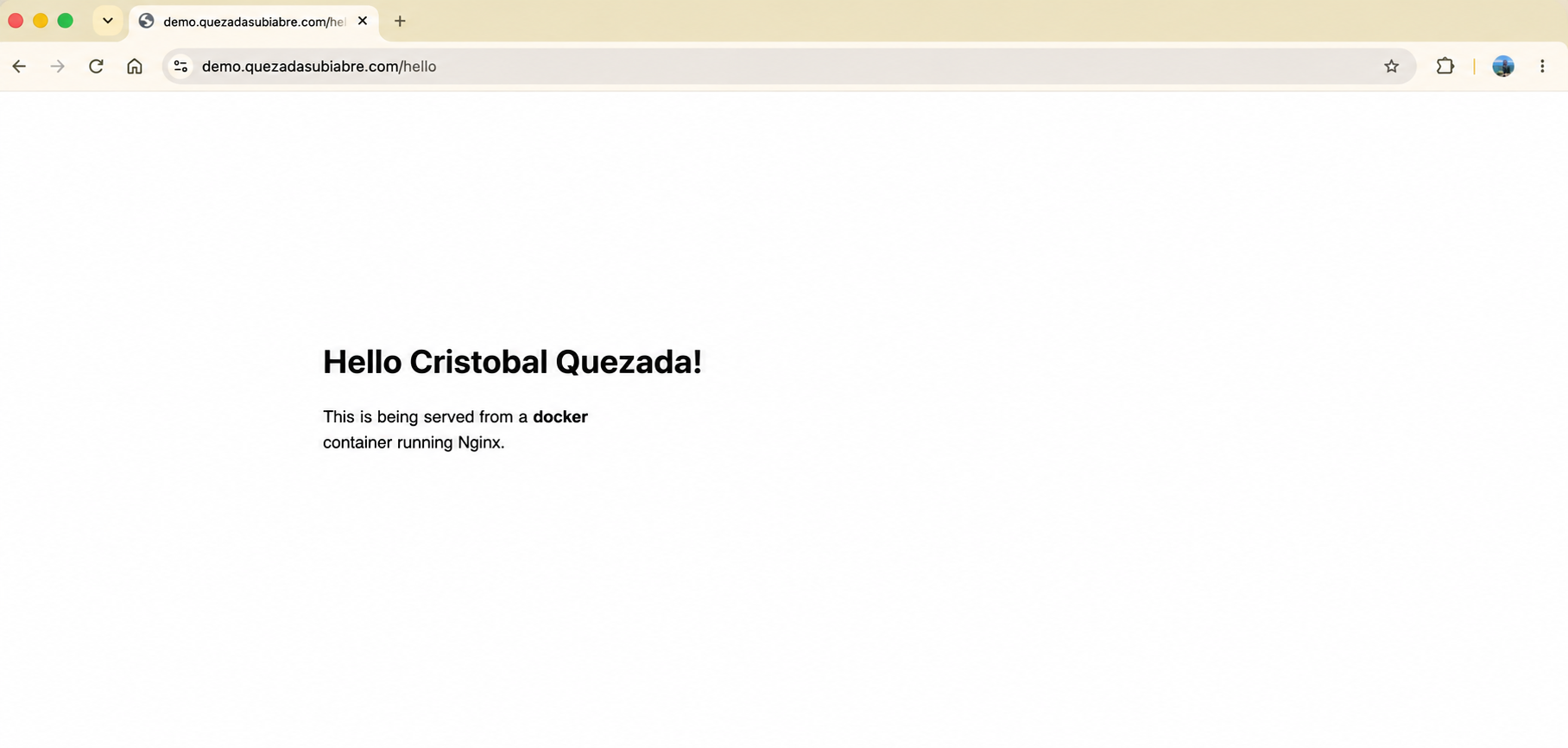
And it works — https://demo.quezadasubiabre.com/hello resolves, serves over HTTPS, and shows the page with the AUTHOR override from the Deployment:
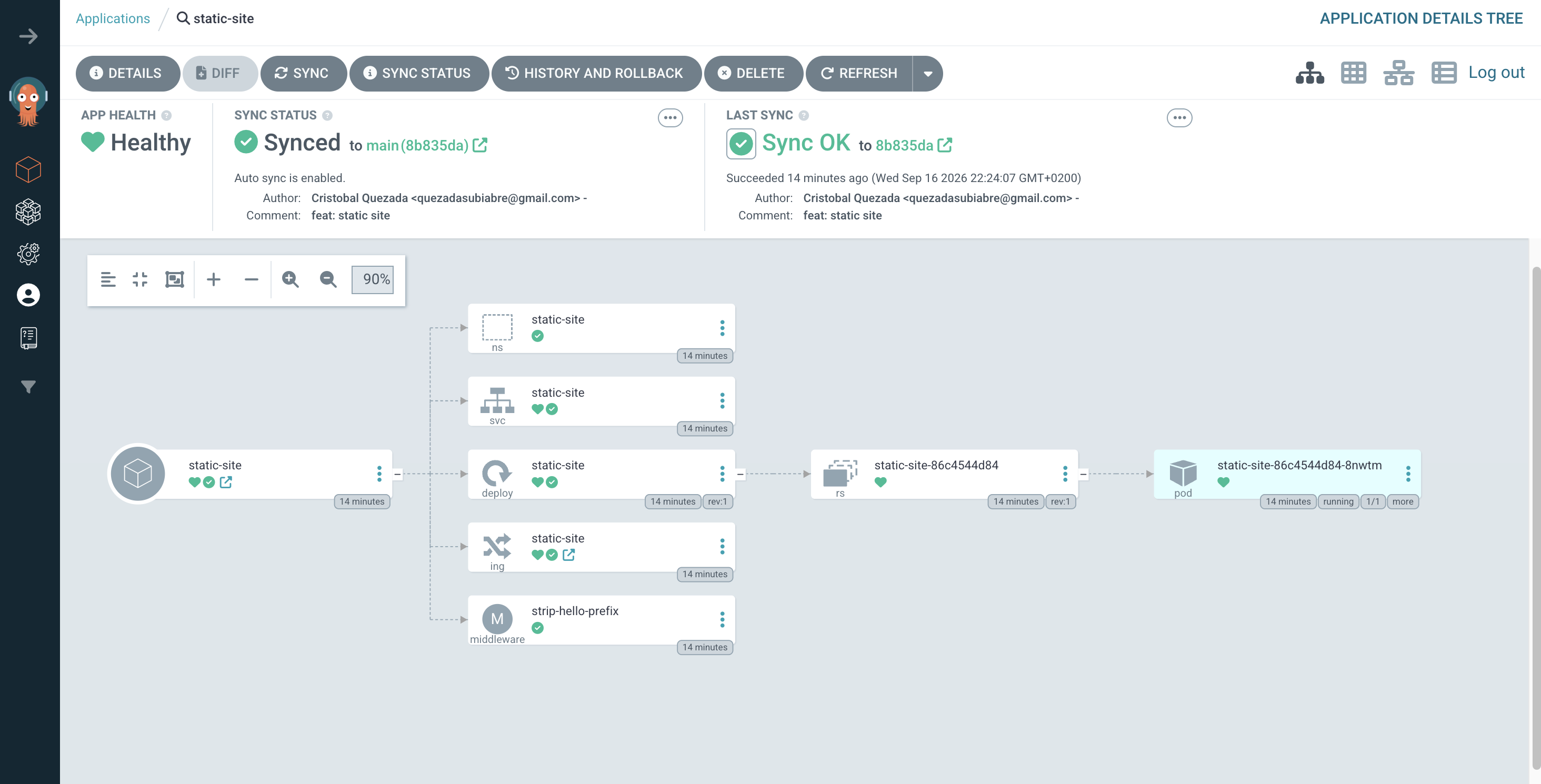
And in Argo CD, the static-site Application shows Healthy / Synced, with the full resource tree it created and is managing — the Namespace, Service, Deployment, Ingress, and Middleware, down to the actual running pod:
With the networking layer proven end to end, the platform is ready for the actual payload. In the next post, I’ll cover how to host a GPU workload on this same cluster using the nvidia-device-plugin and dcgm-exporter.
Code is up at github.com/quezadasubiabre/aws-eks-platform.